How to reorder, move, and manage sections with the Action bar
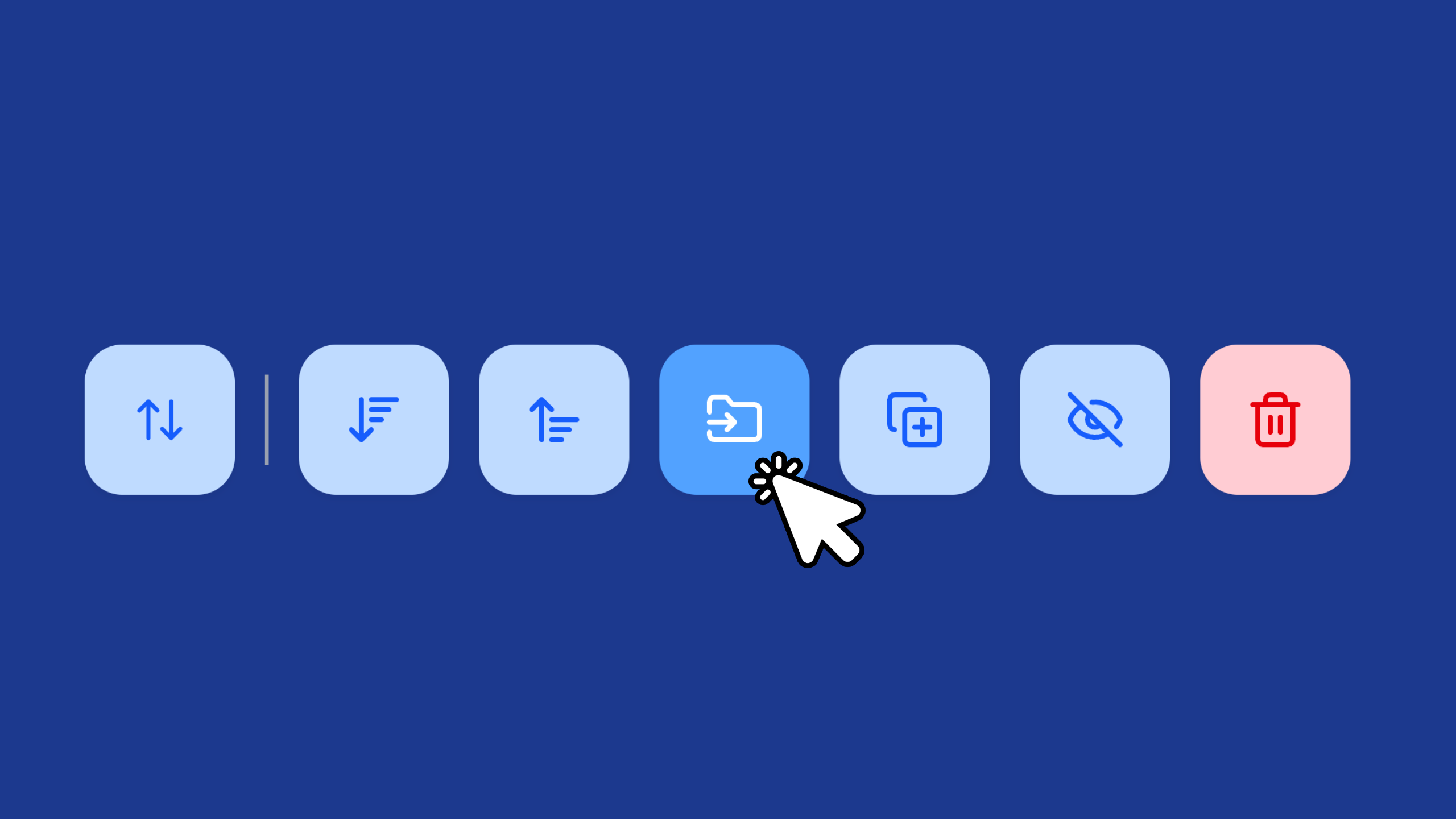
Quick answer: The Action bar lives in the Guidebook panel. Select one or more sections or elements, then use the buttons to reorder, Move to Top or Move to Bottom, Move to another group, duplicate, hide, or Delete. Check for “Deselect all” at the top of the group to avoid unintended actions.
The Action bar is where a lot of the heavy lifting happens when you’re organising a guidebook. Everything you need to arrange, relocate, copy, or remove content sits in one place, so you can shape your guidebook in a couple of taps.
Watch the Quick Tip
Where is the Action bar?
The Action bar is available in the Guidebook panel. It’s where you manage the sections and elements that make up your guidebook.
What can each button do?
Here’s what the buttons deliver:
- Reorder lets you reorder the sections inside the group you’ve selected. Click into any section and you can reorder the elements inside it too, such as Images and Text Boxes.
- Move to Top and Move to Bottom appear when you select one or more sections. They push those sections straight to the top or bottom of the stack. Handy when a group has so many sections that dragging gets fiddly.
- Move takes any section or element to another group or section, anywhere in your guidebook.
- Duplicate makes copies of whatever you’ve selected.
- Hide hides any sections you’ve selected.
- Delete removes selected sections or elements. This cannot be undone.
How to manage a section with the Action bar
- Open the Guidebook panel.
- Select one or more sections, or click into a section to work with its elements.
- Choose the button for the action you want: reorder, Move to Top, Move to Bottom, Move, duplicate, hide, or Delete.
- Before you act, check for “Deselect all” at the top of the group so you don’t complete any unintended actions.
Frequently asked questions
Can I select sections and elements at the same time? No. If you’ve selected an element, the checkboxes for sections are made inactive, and the same applies the other way round.
Can I undo a delete? No. Deleting a section or element cannot be undone.
How do I avoid selecting the wrong thing? Check whether “Deselect all” is displayed at the top of the group. That helps you avoid completing any unintended actions.
What do Move to Top and Move to Bottom do? They push your selected sections straight to the top or bottom of the stack. They’re helpful when a group has a lot of sections and drag and drop becomes difficult.
Create yours today at invo.guide. Unlimited free guidebooks, forever.

Pula Panamgama
Co-Founder & CEO
Pula is the Co-Founder and CEO of InvoGuide, leading the company's vision to make hospitality profitable and sustainable through digital innovation.
Connect on LinkedIn