How to delete or hide sections in your guidebook
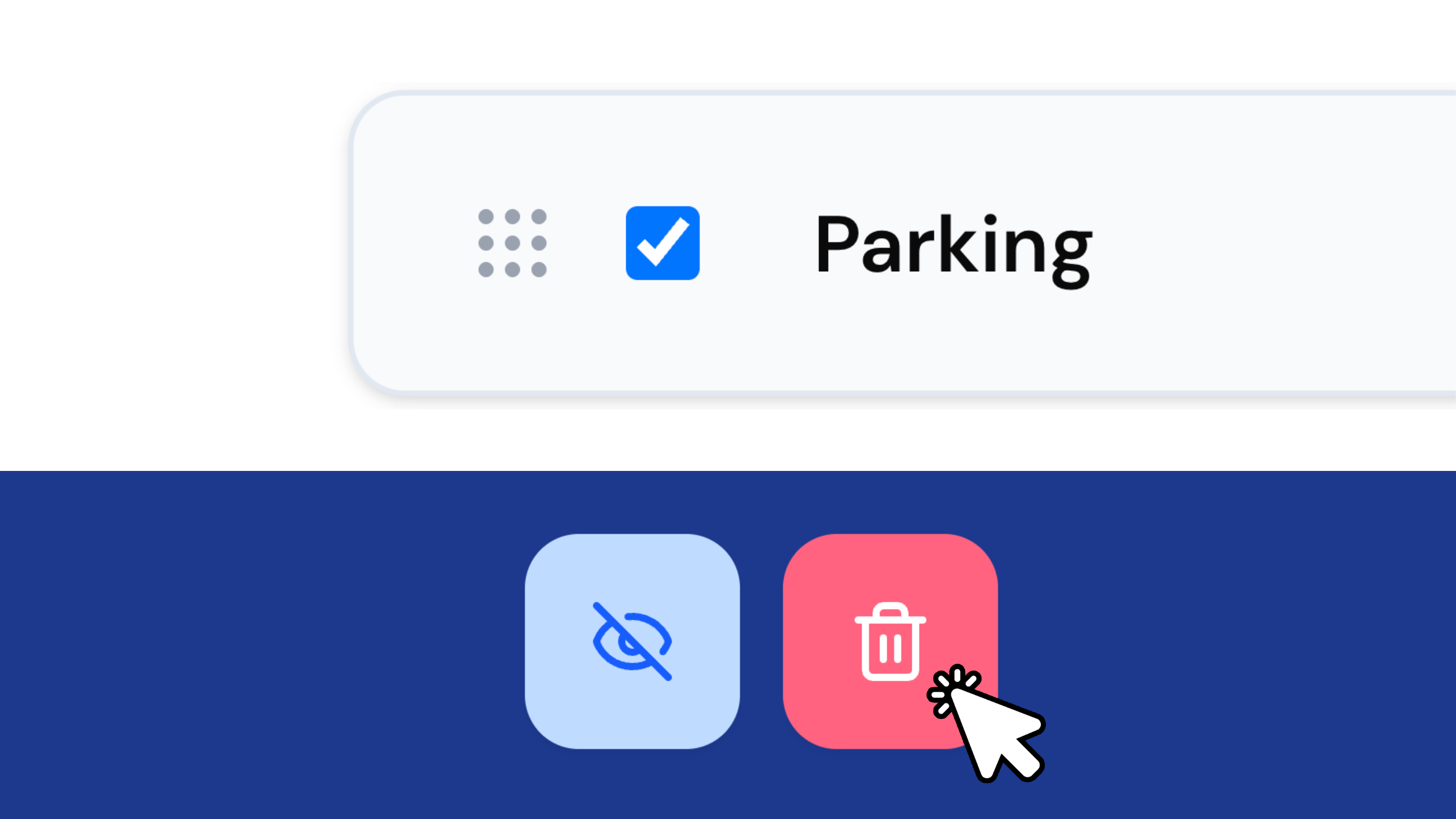
Quick answer: To delete a Section, tick the checkbox next to it, click the delete icon on the Action bar, then confirm in the popup. Deleting is permanent. To hide a Section instead, tick its checkbox and hide it, then tick and click Unhide to bring it back. Click Save & Publish when you’re done.
Your guidebook is built from Sections like Wifi, Checking-In and House Rules. Over time you’ll want to clear out the ones you no longer need, or tuck a few away for later. Here’s how to do both.
Watch the Quick Tip
How do I delete a section?
- Tick the checkbox next to the Section you want to remove. You can select more than one at a time.
- It helps to keep your Sections collapsed while you do this.
- Click the delete icon on the Action bar.
- Confirm in the popup that opens to finish deleting.
Deleting is permanent and can’t be undone. Once a Section is gone, it’s gone from your guidebook for good.
How do I hide a section instead?
If you only need a Section out of sight for now, hide it rather than delete it.
- A hidden Section shows a small icon beside it, and it won’t appear in the preview.
- To bring it back, tick its checkbox and click Unhide.
You’ll see every change live in the preview pane.
Publishing your changes
When you’re happy, click Save & Publish to push it out straight away. Refresh your guidebook in a new tab and you’ll see the changes are live.
Frequently asked questions
Can I delete more than one section at once? Yes. Tick the checkbox next to each Section you want to remove, then delete them together.
Can I undo a deleted section? No. Deleting is permanent and can’t be undone. If you might want a Section back later, hide it instead.
What’s the difference between hiding and deleting? Deleting removes a Section for good. Hiding keeps it in your guidebook but out of sight, with a small icon beside it, and it won’t show in the preview. You can Unhide it any time.
Do my changes go live straight away? Only after you click Save & Publish. Refresh your guidebook in a new tab to see the changes are live.
Create yours today at invo.guide. Unlimited free guidebooks, forever.

Pula Panamgama
Co-Founder & CEO
Pula is the Co-Founder and CEO of InvoGuide, leading the company's vision to make hospitality profitable and sustainable through digital innovation.
Connect on LinkedIn