How to embed YouTube videos in your guidebook
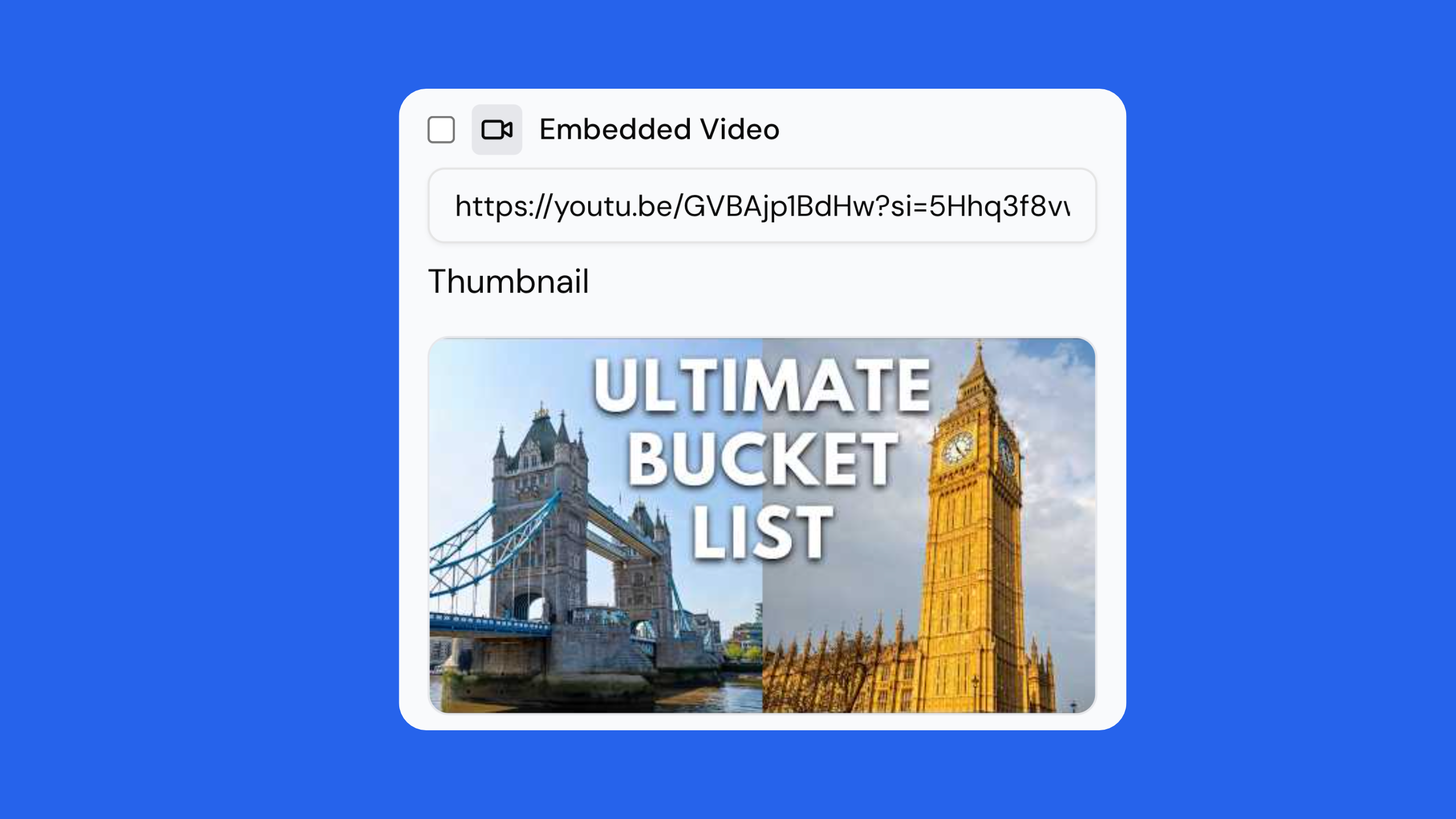
Quick answer: Grab a Public or Unlisted YouTube share link. Open your guide in editing mode, go to the section you want, click “Add Element”, then click Video. Paste the link, then click Save & Publish.
Got a YouTube video your guests should see? A check-in walkthrough, a local guide, a how-to for the coffee machine? You can embed it straight into your guidebook so it plays right where they need it.
Watch the Quick Tip
What kind of video link do I need?
You’ll need the share link from the video you want. It has to be Public or Unlisted. Private videos won’t work.
How to embed a YouTube video
- Grab the share link from the video you want.
- Open your guide in editing mode and go to the section where you want the video.
- Open the section in the preview to see your changes.
- Click “Add Element”, then click Video.
- Paste the link into the field.
- Play the video in the preview to check it works.
- Click Save & Publish.
The thumbnail appears in the panel, and the video shows up in the preview. Your changes go live straight away. Just refresh your guidebook to see the new video.
Frequently asked questions
How many videos can I embed? There’s no limit on how many you can embed, even on the free version.
Can I use a private YouTube video? No. The link needs to be Public or Unlisted. Private videos won’t work.
How do I check the video works before publishing? You can play the video right there in the preview to check it works.
When do my changes go live? Your changes go live straight away once you click Save & Publish. Just refresh your guidebook to see the new video.
Create your free digital guidebook today at invo.guide. Unlimited free guidebooks, forever.

Yasasi Jayasinghe
Co-Founder, COO & CFO
Yasasi is the Co-Founder, COO, and CFO of InvoGuide, overseeing operations and finance to drive growth in the hospitality technology space.
Connect on LinkedIn