How to add a background image to your guidebook
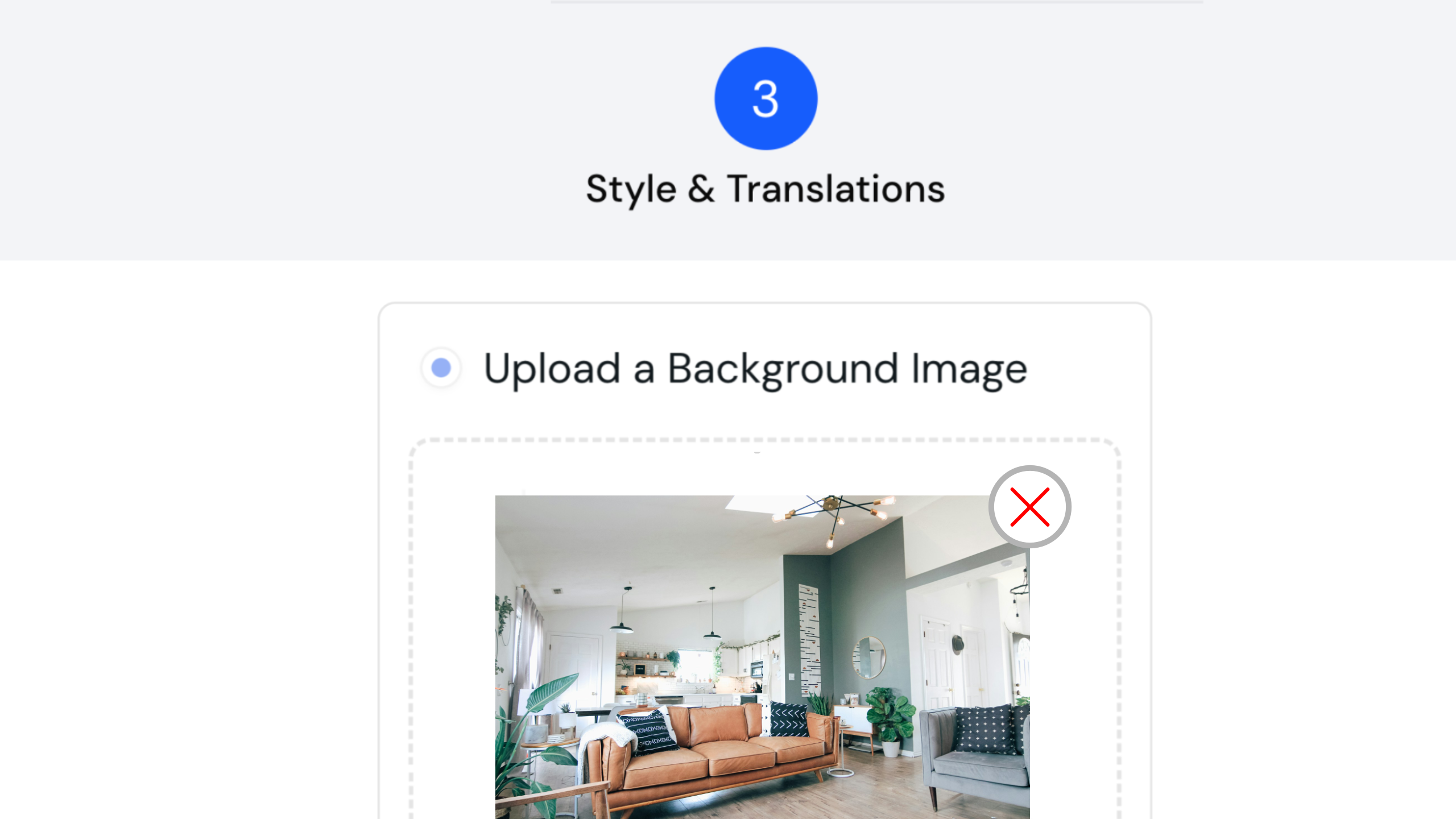
Quick answer: Open your guidebook editor, go to the Style and Translations step, then drag and drop an image onto the upload area or click “Browse your files here”. Crop it with the blue frame, click Crop & Upload, and it appears in the preview. Images must be JPEG or PNG, under 5MB.
The Background Image is the first thing guests see on the home page of your guidebook. A photo of your property helps them feel like they’ve arrived before they’ve even walked through the door. Here’s how to set yours.
Watch the Quick Tip
Before you start
Make sure the image you want to use is saved on your computer. Images need to be JPEG or PNG format, and under 5MB.
How to add a background image
- Open your guidebook editor and go to the Style and Translations step.
- Drag and drop an image straight onto the upload area, or click “Browse your files here” to pick one from your computer.
- When the crop pop-up appears, drag the corners of the blue frame to adjust the image to the right size.
- Click Crop & Upload when you’re happy.
- Check the preview on the right to see your image in place.
What happens if you skip it?
If you don’t add a background image, InvoGuide uses a default one instead. You can come back and update it any time.
Frequently asked questions
What image formats can I use? JPEG or PNG, and the file needs to be under 5MB.
What if I don’t add a background image? InvoGuide uses a default one instead.
Do I need a paid plan to change the background? No. You can update the background even on the free tier.
Create your free digital guidebook today at invo.guide. Unlimited free guidebooks, forever.

Yasasi Jayasinghe
Co-Founder, COO & CFO
Yasasi is the Co-Founder, COO, and CFO of InvoGuide, overseeing operations and finance to drive growth in the hospitality technology space.
Connect on LinkedIn