How to set up your guidebook's Home page in InvoGuide
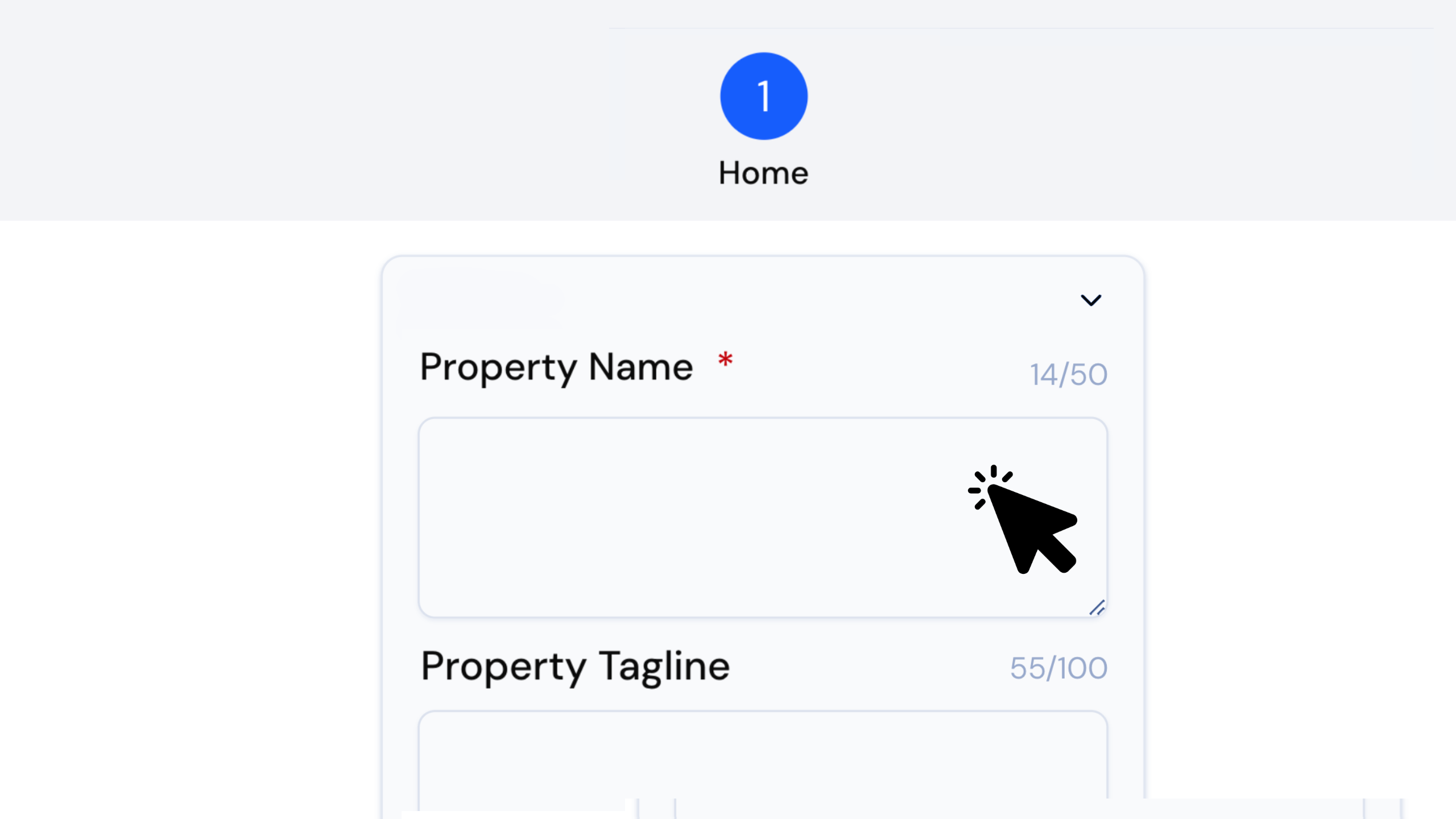
Quick answer: On the Home page, fill in your Property Name and Contact Message (both required), add a Property Tagline, Welcome Message, Social and web links, Contact Methods, an Emergency Message and Emergency Contact Methods. Then click Continue to move on to the Guidebook details.
Your Home page is where your guidebook gets its personality. It’s the first thing guests see, and it holds the details they’ll come back to, from how to reach you to what to do in an emergency. Here’s what each field does.
Watch the Quick Tip
What can you edit on the Home page?
Each field below shapes how your guidebook looks and how guests get in touch.
- Property Name — required. It gives your property, and your guidebook, its own personality.
- Property Tagline — a short line that captures the vibe of your place, like a little slogan. Something like “Your home away from home” or “A tropical garden retreat, minutes from the city.”
- Custom Link — a Pro feature. It lets you customise the share link of your guidebook. Every link should be unique, so whatever you type gets checked for availability.
- Welcome Message — where you leave a friendly note for your guests.
- Social and web links — connect your social media pages here.
- Contact Message — required. Use it to tell guests how to reach you if they need anything.
- Contact Methods — set up Phone calls, Messages, WhatsApp Messaging and Emails. Add as many as you like.
- Emergency Message — tells guests what to do in an emergency. It’s worth including local emergency numbers, escape routes from the property, and your address, so guests can pass it on quickly.
- Emergency Contact Methods — set your emergency numbers here so they’re easy for guests to find.
How do you set up the Home page?
- Enter your Property Name. This one’s required.
- Add a Property Tagline to set the vibe of your place.
- If you’re on Pro, enable a Custom Link to customise your guidebook’s share link.
- Write a Welcome Message for your guests.
- Add your Social and web links.
- Fill in your Contact Message. This one’s required too.
- Configure your Contact Methods: Phone calls, Messages, WhatsApp Messaging and Emails. You can add more than one.
- Write an Emergency Message with the details guests would need.
- Set your Emergency Contact Methods.
- Click Continue to move on to the Guidebook details.
If anything isn’t set up correctly, you might see an error that stops you going further. Check your details and try again.
Frequently asked questions
Which fields are required? Property Name and Contact Message both need to be filled in.
Is the Custom Link free? No. Enabling a Custom Link is a Pro feature.
Can I add more than one contact method? Yes. Under Contact Methods you can add as many as you like, including Phone calls, Messages, WhatsApp Messaging and Emails.
What should I put in the Emergency Message? It’s worth including local emergency numbers, escape routes from the property, and your address, so guests can pass it on quickly.
Why am I getting an error when I click Continue? If any of your details aren’t configured correctly, you’ll see an error that prevents you from proceeding. Check the fields and try again.
Create yours today at invo.guide. Unlimited free guidebooks, forever.

Pula Panamgama
Co-Founder & CEO
Pula is the Co-Founder and CEO of InvoGuide, leading the company's vision to make hospitality profitable and sustainable through digital innovation.
Connect on LinkedIn